🔄 Firmware Update Guide
This guide details the process for updating the main drone firmware, covering the two critical processors:
- STM32F405 (Dedicated Flight Control, Motor and Sensor Management)
- ESP32S3 (Main Control, Telemetry, Camera Driver, and Radio Communication)
The update is performed using the application's QR code method.
⚠️ Prerequisites and Safety Checks
Before starting the update process, ensure all the following conditions are met to prevent failure or damage:
- Wi-Fi Network: You must use a stable 2.4 GHz Wi-Fi network (most 5 GHz networks are not compatible).
- Proximity: Keep your mobile device/laptop near the RoBeeX AI Drone and your Wi-Fi router for a strong, stable connection.
- Battery Level: The drone's battery charge must be above 50%.
- Lighting: The ambient lighting must be normal and stable to ensure the drone's camera can clearly see the generated QR code.
Step-by-Step Update Process
Follow these steps precisely to initiate and complete the firmware update:
Part 1: Preparing the Drone (Entering Update Mode)
Enter Update Mode: Press the Switch Key (located on the side of the RoBeeX) and hold it for more than 3 seconds.
- Video Guide: See how to enter Update Mode here:
Verify Status: Continue holding until all 4 RGB LEDs on the drone begin to flash blinky 🔵 blue. This confirms the drone is ready to receive network configuration (See Detailed LED Status below).
Part 2: Sending Network Configuration (QR Code Scan & Download)
- Open Application Update: In the RoBeeX App, navigate to the Settings and click the "Update" button.
- Enter Credentials: Enter the Wi-Fi SSID (Name) and Password of your home or office Wi-Fi network that has access to the internet.
- Generate QR Code: The application will generate a secure QR code containing the network credentials.
- Scan QR Code: Take the mobile device/laptop and position the generated QR code directly in front of the RoBeeX camera (front of the drone) at a distance of approximately 30 cm.
- Wait for Confirmation: Hold the QR code steady until the drone's RGB LEDs turn OFF. This indicates a successful scan and connection attempt.
- Update in Progress: The RGB LEDs (1 to 4) will now start flashing alternating 🔴 RED and 🟢 GREEN. The installation is underway.
- Download Complete: The LEDs will eventually turn solid 🟢 GREEN, indicating the update process is complete.
💡 Step-by-Step LED Status Sequence (While Blinking 🔴/🟢)
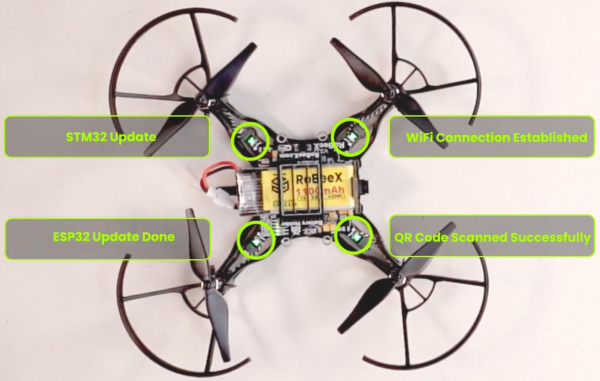
During the update phase (Step 6), the individual RGB LEDs light up sequentially to show the exact progress of the process. The action is in progress while the LED is blinking and is considered completed and successful when the LED turns solid 🟢 green.
| LED Symbol | Action / Component | Status (Blinking 🔴/🟢) | Status (Solid 🟢 Green) |
|---|---|---|---|
| RGB1 | Wi-Fi Scan / Configuration | The drone is attempting to scan the QR code and process Wi-Fi settings. | QR Code Scanned Successfully. |
| RGB2 | Wi-Fi Connection | The drone is attempting to establish a connection to the internet via the specified Wi-Fi network. | Wi-Fi Connection Established. |
| RGB3 | STM32F405 Chip | The STM32F405 Flight Control Firmware is currently downloading and installing. | STM32F405 Update Done. |
| RGB4 | ESP32S3 Chip | The ESP32S3 Wi-Fi/Communication Firmware is currently downloading and installing. | ESP32S3 Update Done. |
🟢 Post-Update Status Reference Guide
Once the update is complete (LEDs turn solid 🟢 Green), the drone will enter a final operational mode (Mode 1 or Mode 2), indicated by the following LED patterns.
| Status Description | RGB1 (Front Left) | RGB2 (Front Right) | RGB3 (Rear Left) | RGB4 (Rear Right) | Meaning |
|---|---|---|---|---|---|
| Critical Error / Calibration Needed (Mode 1) | Blinking 🟡🔴 | Blinking 🟡🔴 | Blinking 🟡🔴 | Blinking 🟡🔴 | CRITICAL: IMU calibration is required due to the update. You must immediately refer to the IMU Calibration page. |
| Ready / Disconnected (Mode 2) | Blinking ⚪ | Blinking ⚪ | Blinking 🔴 | Blinking 🔴 | Drone is updated and powered on, but the mobile device/laptop is NOT connected to the drone's Wi-Fi. |
| Ready / Connected (Mode 2) | Blinking ⚪ | Blinking ⚪ | Blinking 🟢 | Blinking 🟢 | Drone is updated and ready. The mobile device/laptop IS successfully connected to the drone's Wi-Fi network. |