🖼️ Gallery Menu
The Gallery menu provides centralized access to all videos and photos captured by your RoBeeX drone's camera.
You can access the Gallery directly from the main application dashboard or via the Picture Icon  on Top-left corner of the Manual Flight screen.
💾Media Storage Notice
All photos and videos are recorded and stored directly onto the memory of the connected mobile device, tablet, or laptop running the RoBeeX app.
The media is NOT stored on the RoBeeX drone itself. Ensure your connected device has sufficient storage space before beginning flight.
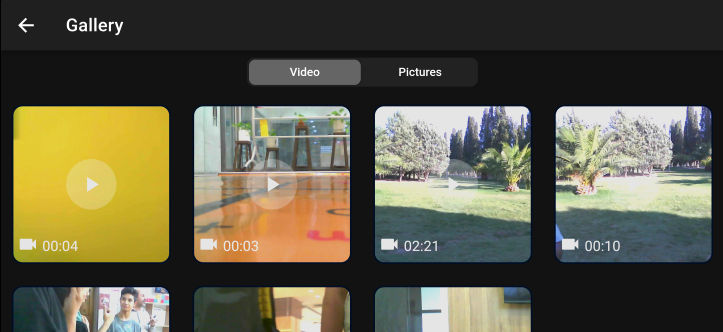
Media Organization
The Gallery interface uses two distinct tabs for managing your media:
- 📹 Video Tab: Displays all recorded video files. Each video thumbnail shows the recording duration, such as
00:04(4 seconds) or02:21(2 minutes and 21 seconds). - 📸 Pictures Tab: Displays all captured still photograph files.
Media Capture Feedback
- Video Recording Counter: During active flight, once recording is started, a timer bar appears at the bottom of the screen. This displays the elapsed recording time in minutes and seconds (e.g.,
00:03). Pressing the Stop button on this bar immediately saves the video. - Photo Counter: Every time a still image is captured using the Photo Capture button on the flight screen, the app tracks the total number of photos taken during that session (The visual counter typically appears near the Gallery icon on the main flight interface).